Mini apps · 0:52
Sales Pop: show real recent purchases
Set up Sales Pop: choose what the card says, how it reads and what goes in it, check the privacy note and publish.

Chapters
Read the guide
Transcript
0:03 What the card says
Sales Pop shows a small card about a recent purchase, built from real orders. By default it says someone in a city, and shoppers see a city, never a name.
0:14 How it reads
Choose how it reads: classic, just bought, or product first. You can also choose where it draws from, whether to link the product, and whether to show the photo and the time.
0:27 Before you publish
The checklist makes sure the message, the privacy notice and the timing are ready. The settings list also covers recent purchases, timing, look and where it shows.
0:38 Publish
The publish dialog repeats what shoppers will see, and notes that shoppers see a city, never a name. Then it goes live on your store.
More video tutorials
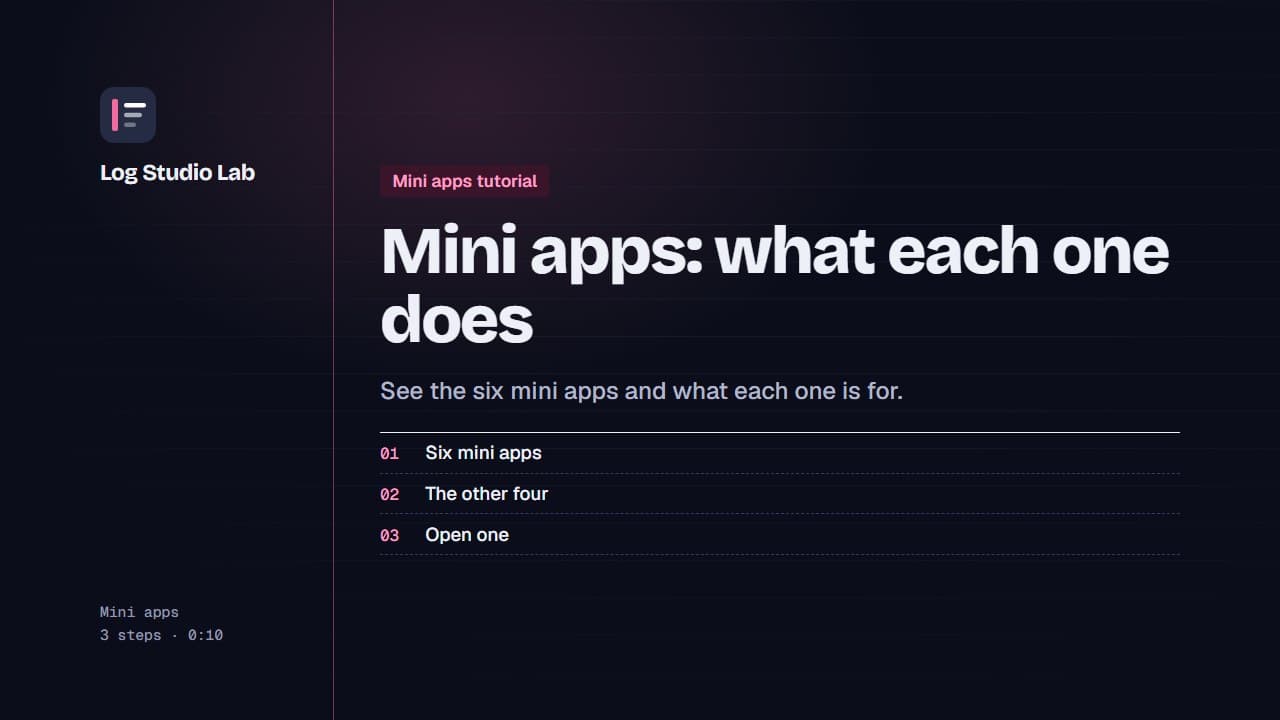
Mini apps: what each one does
A tour of the six mini apps: Bundle Builder, Quantity Breaks, AI Chat, Urgency Bar, Sticky Add to Cart and Sales Pop.
0:48
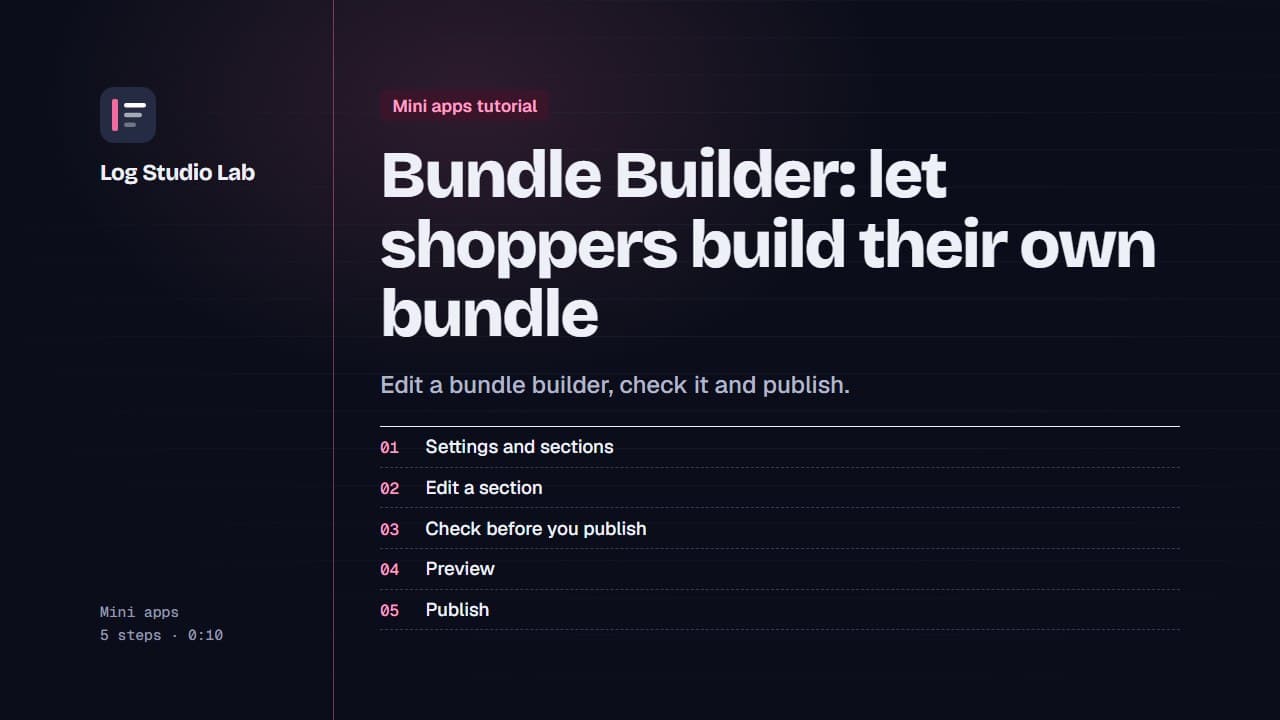
Bundle Builder: let shoppers build their own bundle
Walk through the Bundle Builder editor: settings and sections, the readiness checklist, the live preview, and publishing.
1:09
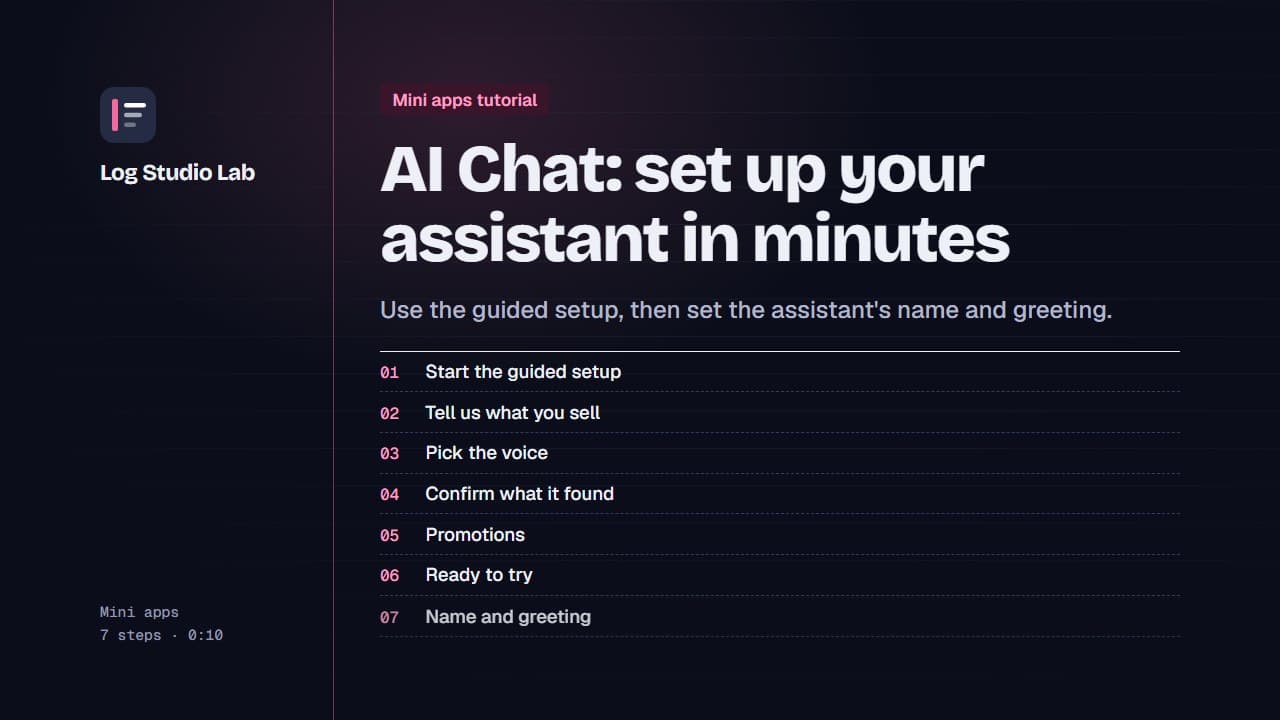
AI Chat: set up your assistant in minutes
Start the AI Chat guided setup, answer short questions about your store, voice, returns and promotions, then set the name and greeting.
1:19