Mini apps · 0:52
Sticky Add to Cart: keep the button in view
Set up Sticky Add to Cart: write the button words, check the mobile preview with its sold out and choose options states, and publish.

Chapters
Read the guide
Transcript
0:03 The words
Sticky Add to Cart keeps an add to cart bar in view on product pages. Set the button label, the sold out label, and the choose options label.
0:14 Preview
The preview shows the bar on a product, here on mobile. You can switch to desktop, and check the sold out and choose options states.
0:24 How it behaves
It clicks your theme's own add to cart button, so your cart drawer works exactly as before. On a product with options, it says Choose options until a shopper picks a variant. And when the chosen variant is sold out, the button says Sold out.
0:41 Publish
Select Publish, check the list, and confirm. It goes live once the app embed is on in your theme.
More video tutorials
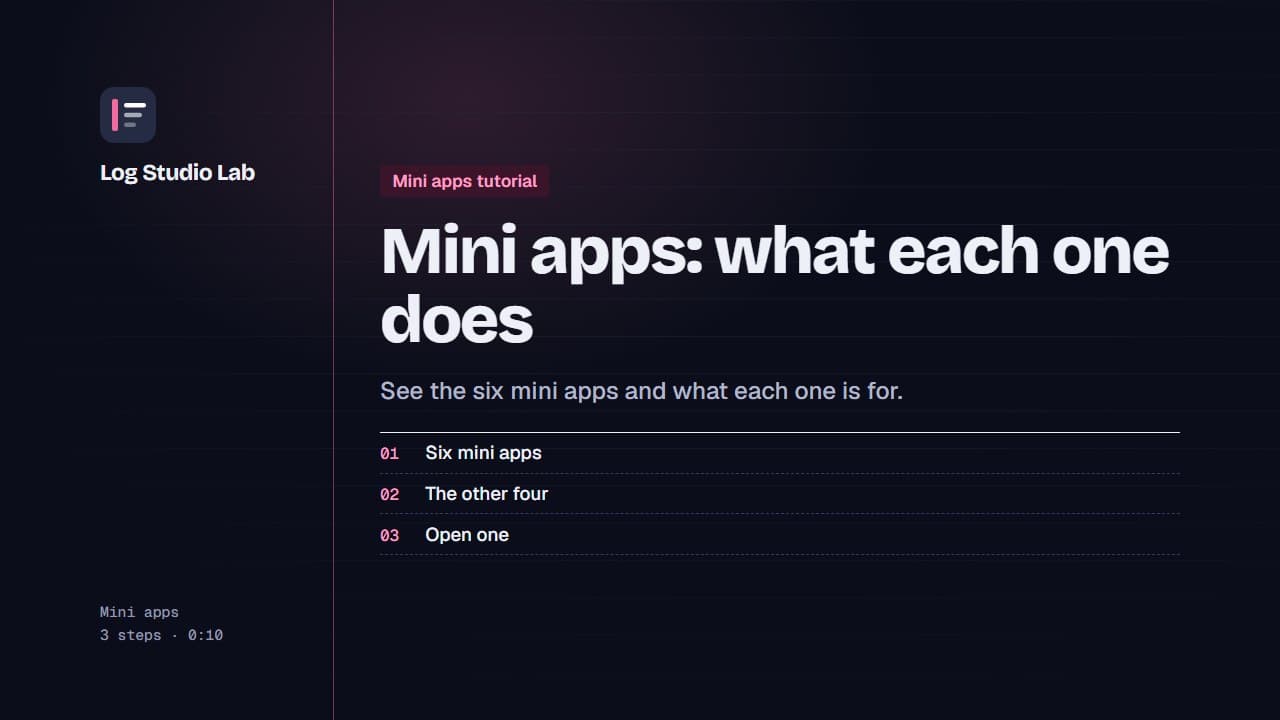
Mini apps: what each one does
A tour of the six mini apps: Bundle Builder, Quantity Breaks, AI Chat, Urgency Bar, Sticky Add to Cart and Sales Pop.
0:48
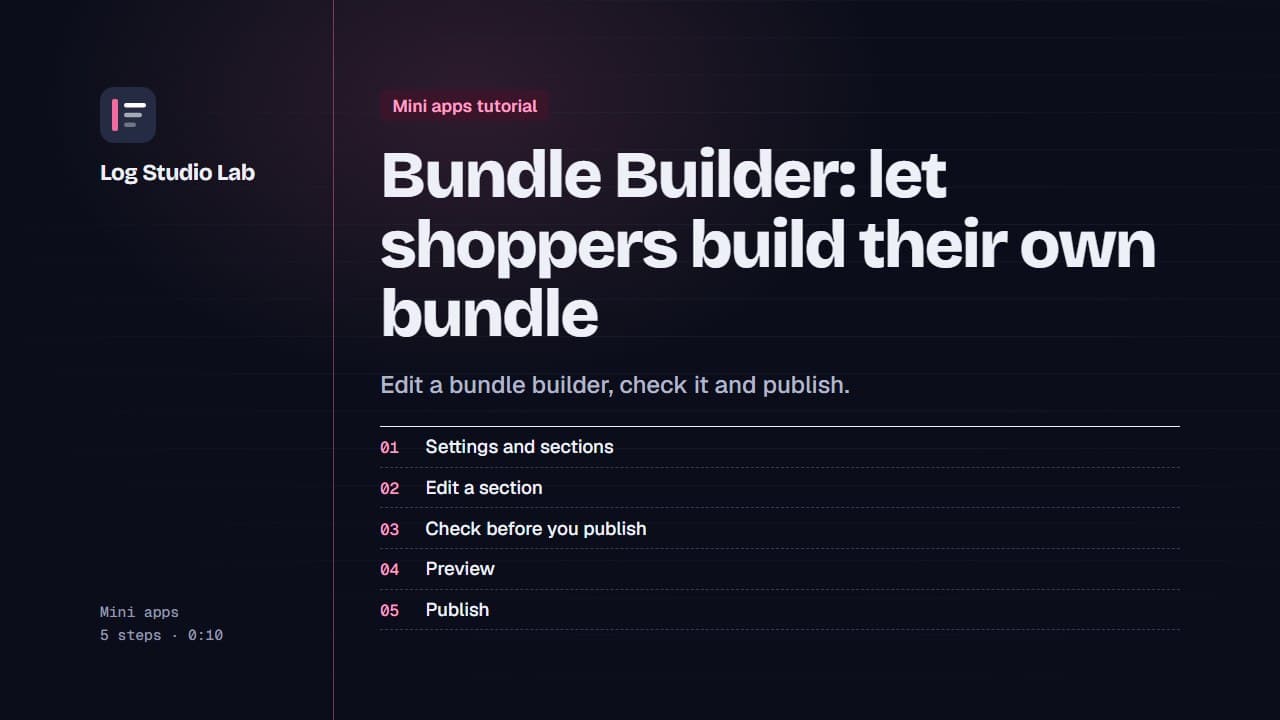
Bundle Builder: let shoppers build their own bundle
Walk through the Bundle Builder editor: settings and sections, the readiness checklist, the live preview, and publishing.
1:09
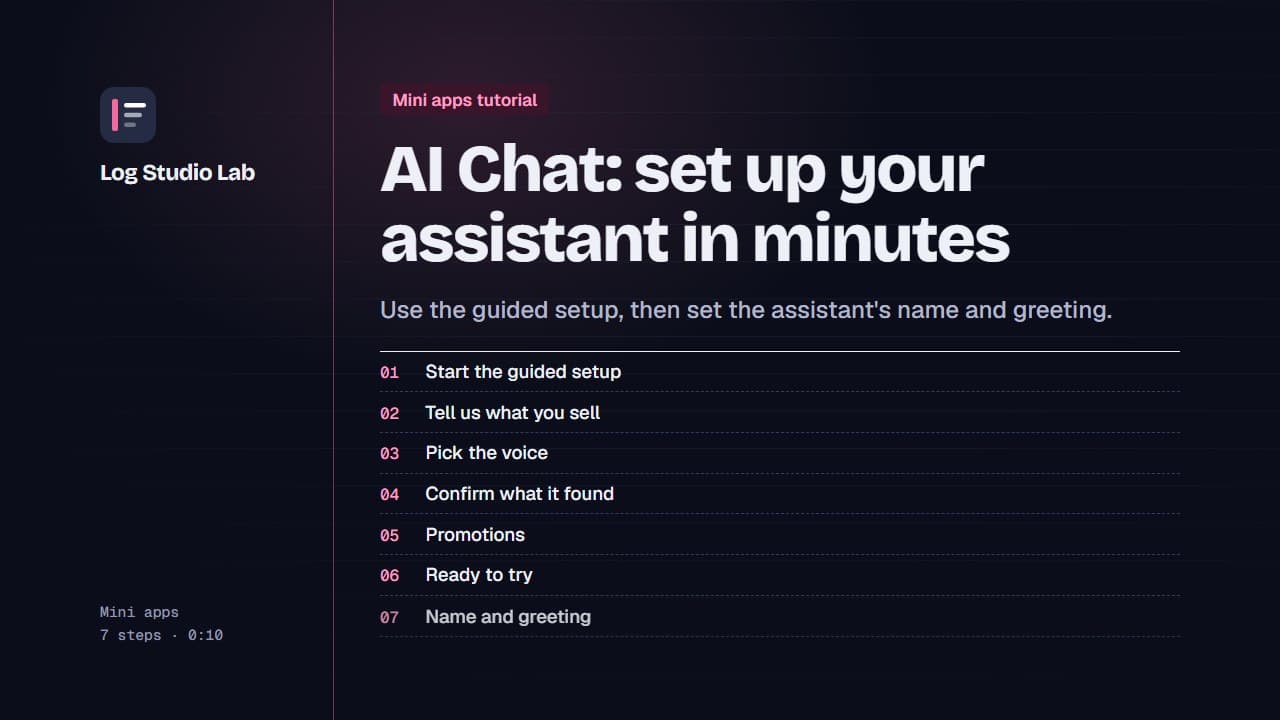
AI Chat: set up your assistant in minutes
Start the AI Chat guided setup, answer short questions about your store, voice, returns and promotions, then set the name and greeting.
1:19